
Image Slicing in Photoshop CS3
No doubt you’ve heard about image slicing, but do you know what it is and how it works? Image slicing is a technique for creating a web page (or a component of a web page, like a header or navigation menu) visually in Photoshop (Fireworks and Illustrator also allow you to slice images, too). But how does it work?
Well, you’d first design a page in Photohsop exactly as you want it to look when it goes live on the web. Then you cut out all the page components—title bars, buttons, navigation menus, and so on—using Photoshop’s Slice tool. Then, when you save everything out, Photoshop saves each slice as an individual graphic, and (and this is the icing on the cake for the code-leary) all the necessary code will automatically be written as well. Sounds awesome, huh?
Finally, once everything’s saved out, you can pull everything into Dreamweaver and finish off your layouts with any necessary tweaks. It’s a very cool process, and one of the most popular methods for building web pages.
The following sections describe how to take a created layout, slice it up in Photoshop, save it out, and then pull the whole thing into Dreamweaver to finish it off. Ready? Lets get started!
Part 1: Designing Your Page ‘n Slicin’ it Up
So obviously, the first thing you’ll need to do is create a layout in Photoshop. In my example, I’m building an entire page, and because I don’t want any horizontal scrolling in my layout, I build for the most common monitor resolution, 1024×768. There’s quite a bit of debate as to how wide one can design inside a width of 1024 pixels, but I personally go with 990 pixels as my maximum width. This means that starting off in Photoshop, I create a new file with a canvas size of 990 pixels wide. As for the height, that’s usually determined by content, so you might want to give yourself lots of space to work inside.
Now in the case of creating a page object like a menu or header, you’d have to know the dimensions of the object before creating it in Photoshop.
Once your dimensions are set, it’s simply a matter of building your design. Design and lay out all your buttons, background graphics, logos, and so on, building up your page’s design. Use whatever tools, commands, and options you’d like. Often times, I’ll even cook things up in Illustrator, then drop them into my layered Photoshop layout as Smart Objects, just to make the process go faster.
If you’re building a page as I am here, don’t worry about actual page content—the text and other objects that would appear on the individual pages of your site. Imagine instead that you’re building a template. What you’re after is the overall look of all the pages in your site. Later on in Dreamweaver, you can drop in the content. Once your page design is complete, you’re ready to begin slicing it apart.
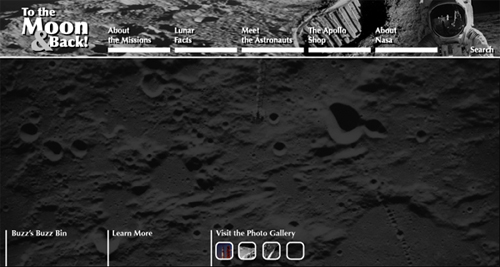
Slicing up your design is the fun part. What you’re doing is taking your overall layout and cutting it into smaller pieces. This means you’ll be isolating buttons, logos, and background areas on your page by slicing them away from the rest of the layout. There are a few different ways to slice apart layouts and page components, but I’ll show you my technique.
Here’s how to get started:
1. From Photoshop’s Toolbox, select the Slice tool.
2. With the Slice tool, click and drag a box all the way around your entire design.
This creates a single, large slice that encompasses your entire layout. I think you’ll find this to be the easiest and most accurate way to slice images.
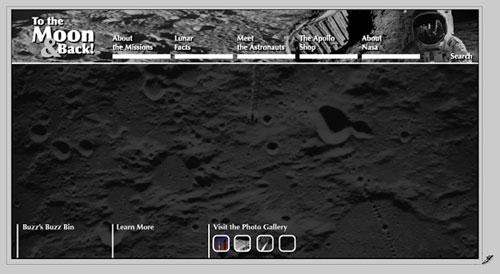
3. Right-click (or Ctrl+click on the Mac) anywhere inside your design, and choose Divide Slice.
4. In the Divide Slice dialog that appears, decide how you’d like to break that single slice that you just drew. Turn on either Divide Horizontally Into or Divide Vertically Into (or both); then enter in the number of slices you’d like to create. Click OK when you’re ready.
This is where the craft of image slicing comes in. Look for natural breaks in your image. Remember, each slice will wind up being saved out as an individual graphic, so you may want to create slices for each button in a menu, for example. In my layout, I’ve divided the image into three slices horizontally: one for the header area, one for the main area, and a third for the lower, footer area.
If Preview is turned on in the Divide Slice dialog, you’ll be able to see where your slice lines will appear in the image. Don’t worry if they’re not exact, we’ll adjust them in the next step.
5. Next, if needed, adjust the slice lines that appear on your image simply by dragging on them. You may want to zoom in for a little more precision.
You’re now ready to continue slicing apart your layout. I find it easiest to work from the general to the specific—in other words, look for main areas to slice away; then start getting more refined as you go. Once you have the general areas of your layout sliced, you’re ready for the more detailed areas.
6. To continue slicing apart your image, single-click inside a “general area” slice; then right-click (or Ctrl+click on the Mac), and choose Divide Slice once again.
Notice that when you single-clicked inside the slice, all the other slices in the image deselected? Now this time, you’ll only be dividing up the currently selected slice.
7. In the Divide Slice dialog, set the number of slices you’d like to create horizontally and vertically, just you did earlier.
As before, look for natural breaks in your layout. Remember, each slice is saved as a separate graphic, so you might want to isolate buttons, logos, and so on. Don’t get frustrated if you have to start over a few times. Image slicing does takes a bit of patience. Knowing where and what to slice is just a matter of practice.
8. Continue slicing apart your layout using the techniques described until you’re happy with how things are looking.
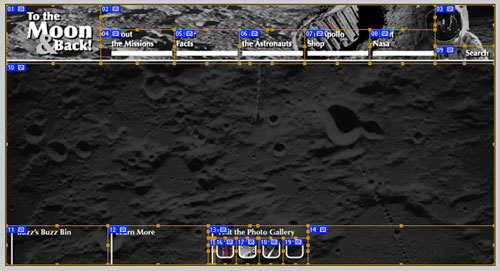
Things lookin’ good? Great, now you’re ready for the fun part!
Part 2: Savin’ Er Out
Once you’ve sliced up your layout, you’re ready to save everything out of Photoshop. And remember, not only will Photoshop save all your sliced images in one shot (meaning that you don’t have to save each of them individually), but it’s also going to build your page’s underlying code structure for you. So when you save your slices, Photoshop will also save an additional HTML file. That’s the file that you’ll want to open in Dreamweaver. Awesome is an understatement here, folks—it doesn’t get much sweeter than this!
Here’s how to save it all out:
1. Choose File > Save For Web & Devices.
2. In the Save For Web & Devices dialog, set optimization settings for your slices.
If you’ve never used this dialog before, I’ll give you a quick run-through on how it works. Holding down Shift, you can select the slices that you’d like to set certain optimization settings for—that is, compression options when you’re saving an image (or in this case, a group of images) for use on the web. Next, on the right side of the panel, you can set your optimization settings.
Depending on the file format that you choose, different options will appear. For example, in the case of JPG, you’ll see options for compression, quality, blur, matte, and a few others. Unfortunately, we don’t have the space to go through all the options, so you may want to read up on a few of these.
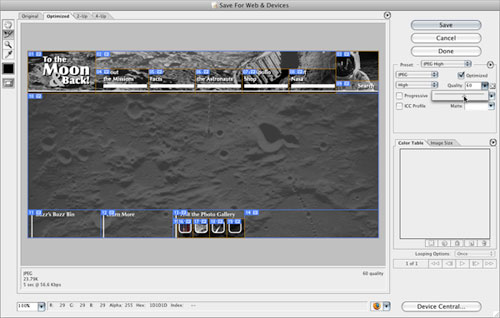
3. Once you’ve optimized your slices, click Save.
4. In the Save Optimized As dialog, name your file in the Save As field; then navigate to the folder where you’d like to save your slices. Don’t click Save just yet.
The location where you save your work will most likely be your site’s local root folder, as you’ve defined it in Dreamweaver (You may need to read up on defining a site in Dreamweaver if you’re not sure what I’m referring to).
5. From the Format menu at the bottom of the dialog, choose HTML And Images.
This ensures that Photoshop will not only save out your slices, but also all the background code needed to render your layout.
If you’d like to explore some of the other options available, choose Other from the Settings menu. You may want to experiment with a few of the commands found here.
6. When you’re ready, click OK.
Photoshop saves out all your slices, and the HTML needed for your layout. Pretty easy stuff. Now lets go take a look at what happened.
7. Minimize Photoshop; then navigate to the folder where you saved your work.
Notice that Photoshop created an HTML file, as well as an images subfolder. Inside the subfolder, you’ll find all the individual slices from your layout.
8. To see your completed layout, open the HTML file in your web browser.
Your layout looks exactly as it did back in Photoshop. Cool!
Part 3: Throwin’ In Some Dreamweaver
Now that everything is saved out of Photoshop, Dreamweaver takes over the formatting duties. In Dreamweaver, try opening the HTML file that Photoshop created, and you’ll see right away that everything’s been created with tables. In Photoshop’s Save Settings (Step 5 in the previous section), you can set whether to use tables or div tags.
Notice too that all the slices sit within the table’s cells. You can drop additional page content on top of your images using a clever technique: Remove the slice from the table cell; then set the cell to the slice’s original dimensions; drop the slice into the cell’s background; and finally insert new text or image content into the cell. This creates the illusion of the content floating above the graphic, as you can see in the screen shot.
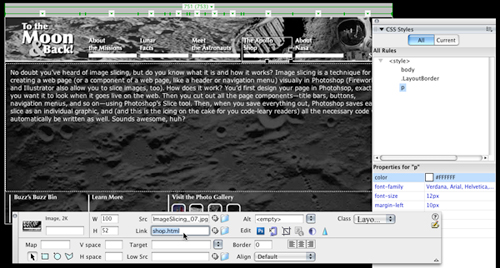
Now you can begin making any adjustments you’d like. For example, you could center the layout, add in a background color, create any necessary CSS rules, begin dropping in your content, and set your hyperlinks.
From here, it’s all tweaking—adjusting CSS styles, text, and other page elements within your design. If you want a graphic to appear behind the text in a table cell (which you can see was done in the sample page design, which uses a crater background behind the text), remove a graphic from its table cell and set it as the cell’s background image, just as you did earlier in this chapter. Then insert your text in the cell as you normally would.
As you work, don’t forget to preview your page to see how your design is looking. And here’s one more trick: With your page working well in Dreamweaver and previewing nicely in those target browsers, use it as the basis for the other pages in your site by resaving it under a different file name for each page. Even better, you can use your page as a Dreamweaver template.
So there it is, a quick guide to getting started with image slicing in Photoshop. Experiment and try out some of the different options, and most importantly, have lots of fun!
