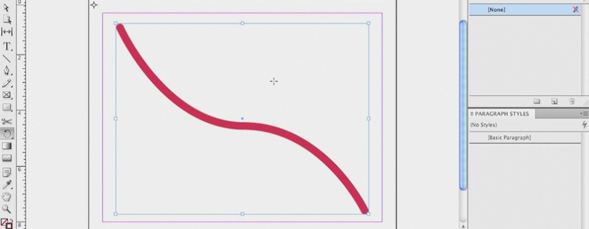
Using a combination of keyboard shortcuts, Jeff Witchel shows how to quickly access options for some of InDesign’s more popular tools.

Quickly Unlocking Options in InDesign
By jeff witchel in InDesign,Tutorial,Video Tutorials
Monday April 2, 2012
Similar Articles
Join Me On The Road: Chicago on Monday!
By RC Concepcion Thursday May 16, 2013
New Portfolio Options at 500px.com
By Matt Kloskowski Wednesday May 15, 2013
3D Movie Title in Adobe After Effects
By Daniel Bryant Friday May 3, 2013
Lensbaby Edge 80 Optic
By Mike Mackenzie Wednesday April 24, 2013
Leave a Response
Popular
- 3D Movie Title in Adobe After Effects
- Simulating 3D in a 2D World in Adobe After Effects – Pt. 2
- Simulating 3D in a 2D World in Adobe After Effects
- Creating Vectors with the new Image Trace Feature in Adobe Illustrator CS6
- Easy Table of Contents Creation in Adobe InDesign
- Let Adobe InDesign Do The Math For You
Columns
Reviews


Thanks Jeff.
Very handy tip, especially with the bullets.
Thanks Kisan!
Great information! Can’t believe I’ve been working with InDesign for many years, and never took the time to explore these shortcuts.
Thank you, Jeff, for suddenly making my life easier!
Thanks Kisan. Glad you liked it.
Best,
Jeff
Hi Jeff,
I ‘m a starter. Need help to begin with designing!
Thanks,
Cyma
Some of these tips are superb! Now here’s a question. I discovered a great tip whereby if I drag a graphic frame and press the up arrow it divides the frame into columns and the left arrow will divide into rows. Problem = If I have created a 2 page spread and set a page gutter value of for example of 20mm and I use this method InDesign assumes that I want the same gutter value between the rows and columns. How can I adjust this so that I can have a set gutter value dividing the page and a different gutter value dividing rows and columns?
Alan
