
Fun Film Design Using Illustrator
CATEGORIES: Tutorials, Illustrator | Corey Barker | May 22, 2008
With a little experimentation and imagination, you can use tools in not-so-obvious ways to create really interesting and seemingly complex effects. In this tutorial, we’ll use a number of basic shapes and a photo to create a simple filmstrip. Then we’ll map that art to a 3D shape that we’ll create and manipulate entirely in Adobe Illustrator.
STEP 1 Start with the Basic Shape
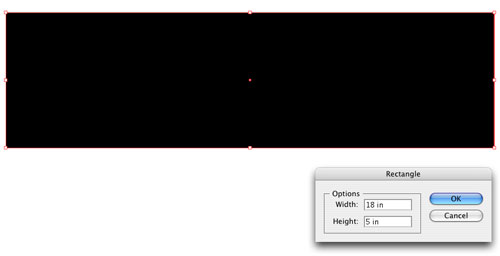
Select the Rectangle tool (M) from the Toolbox, then click once on the artboard. In the Rectangle dialog that appears, enter 18" for Width, 5" for Height, then click OK. In the Control panel, set the Fill color to black and the Stroke to None. We’re building the filmstrip sideways because of the way we’ll use it as mapped art on a 3D shape.
STEP 2 Create the Sprocket Hole
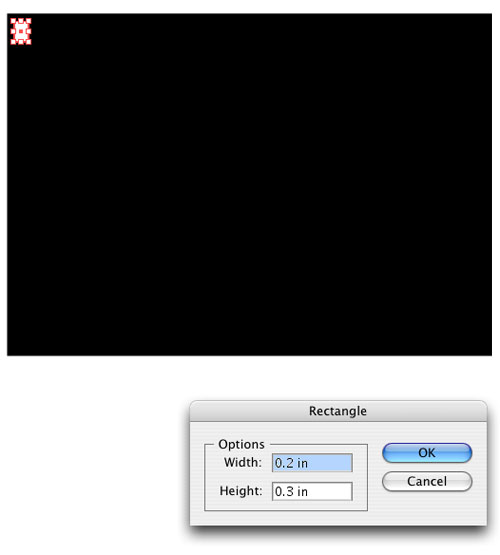
With the Rectangle tool still selected, click on the artboard again. This time enter 0.2" for Width, 0.3" for Height, and click OK. Set the Fill color to white and leave the Stroke set to None. Now choose the Selection tool (V) and position this box in the upper-left corner of the black rectangle.
STEP 3 Repeat the Sprocket Hole
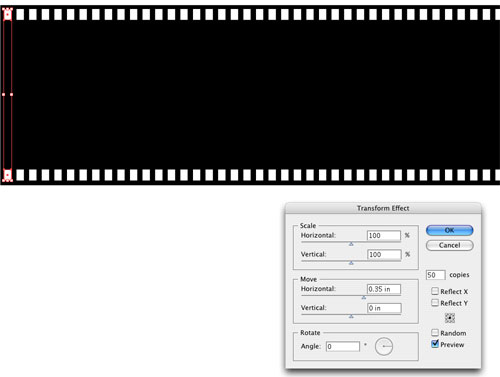
With the sprocket hole still selected, go under the Effect menu and choose Distort & Transform>Transform. In the Move section of the dialog, enter 0.35" for the Horizontal setting. Then, enter 50 for the number of copies and click OK. This will repeat the sprocket holes all the way across the shape. Now hold down the Option key (PC: Alt key), then click-and-drag the first shape in the series down toward the bottom of the rectangle so the holes are on both sides of the film. (Note: Add the Shift key after you start dragging to keep the holes aligned.)
STEP 4 Create a Film Frame
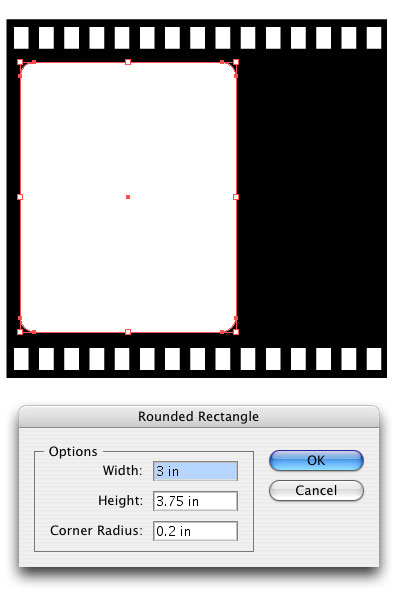
Choose the Rounded Rectangle tool (nested with the Rectangle tool) from the Toolbox. Then click once on the artboard and enter 3" for Width, 3.75" for Height, 0.2" for Corner Radius, and click OK. Then set the Fill color to white and the Stroke to None. Choose the Selection tool and move the film frame onto the left side of the filmstrip.
STEP 5 Place the Photo
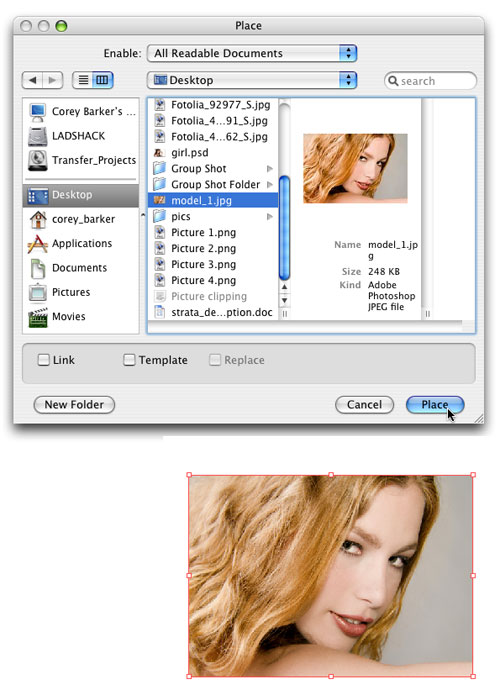
Now let’s place the photo that we’ll use in the film frame. You can use different images for each frame or you can use the same image. We’re using the same image so it looks like a movie clip. Go to File>Place, navigate to the photo you want to use, and click Place. (Note: Make sure the Link option is unchecked in the Place dialog. Also, if you’ve placed a landscape image, go to Object>Transform>Rotate, enter 90° for Angle, and click OK.)
STEP 6 Crop the Photo
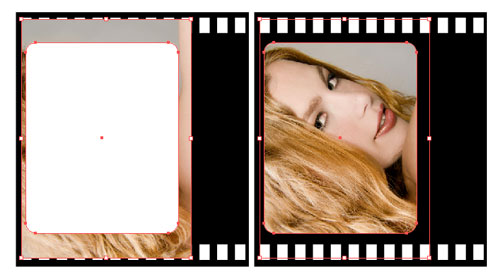
Drag the photo over the frame box we created in Step 4, then choose Object>Arrange>Send Backward. Now resize and center the photo so it’s just a little bit bigger than the film frame. Select both objects, go to the Object menu, and choose Clipping Mask>Make. This will crop the photo inside the frame.
STEP 7 Repeat the Frames
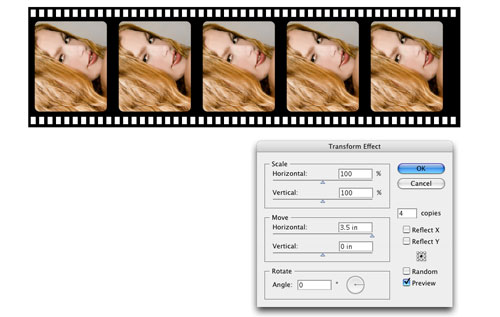
With the object still selected, choose Effect>Distort & Transform>Transform. In the Move section of the dialog, enter 3.5" for Horizontal and then set the number of copies to 4. Turn on the Preview option to see the result before you commit, tweak the settings if necessary, and then click OK. (Note: If you’re using multiple photos, go to Object>Expand Appearance, then choose Object>Ungroup. Select the next frame on the filmstrip, open the Links panel [Window>Links], and click the Relink icon. Navigate to your next image in the Place dialog that appears, and click Place. Repeat this step for each image.)
STEP 8 Make It a Symbol
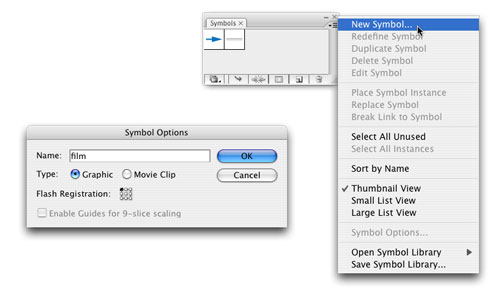
We need to convert this object into a symbol so we can map it to our 3D shape. Open the Symbols panel (Window>Symbols), choose the Selection tool, and click-and-drag over the entire filmstrip object to select it. Click the Symbols panel’s flyout menu and choose New Symbol. In the Symbol Options dialog that appears, choose Graphic, name the symbol, and click OK.
STEP 9 Draw the Line
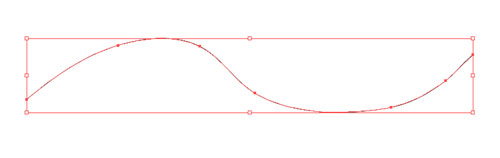
We’re going to create our 3D shape from a stroke. Choose the Pen tool (P) from the Toolbox and draw a smooth, wavy path about the same length as the filmstrip (not too wavy though). Set the Stroke to any color and set the Fill to None.
STEP 10 Another Dimension
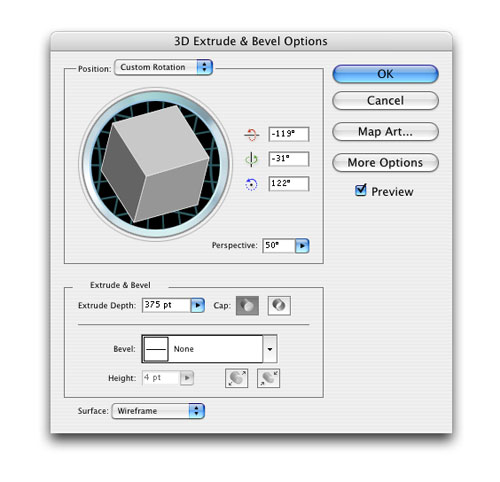
With the stroke selected, go under the Effect menu and choose 3D>Extrude & Bevel. Check on the Preview so you can see the result as you work in this dialog. Change the Surface setting at the bottom to Wireframe, enter a Perspective amount of 50°, and set the Extrude Depth to 375 pt. Now you can use the cube to manipulate the angle of the 3D shape or you can enter specific values for each x, y, and z rotation. Don’t click OK yet.
STEP 11 Map the Art
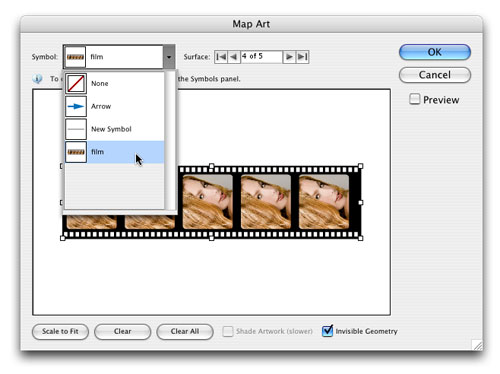
Click the Map Art button. In the Map Art dialog, toggle through the Surface to find the face of the filmstrip (the selected surface is indicated by red outlines on the artboard). Then click the Symbol menu and choose the film symbol we created in Step 8. When it appears in the window, click the Scale to Fit button and turn on Invisible Geometry. This will render only the mapped art, leaving the 3D shape invisible. Click OK to close the Map Art dialog, but don’t close the main 3D Extrude & Bevel dialog yet.
STEP 12 Finish It Off
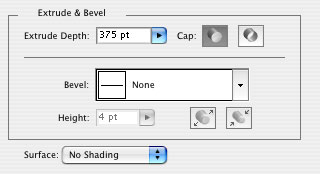
Back in Step 10 we set the Surface to Wireframe. This was mainly for visibility and speed because this setting doesn’t have a render lag when manipulating the 3D object. But now that we’ve rendered our map art, we need to change this setting to No Shading. This will render our finished art as it was created but now it’s mapped to the 3D shape, giving the appearance of a semirealistic strip of film.

Visitor Comments
brad goldstein | May 26, 2008 10:45am
A problem I found is since the original size was 18"W by 5" H I have a film strip that does not fit into the document.
John Deer | May 22, 2008 21:00pm
It would be real nice if you would complete this tutorial for those like me that are trying to learn.
I have finished the tutorial 5 times and still come out with a film strip cut off at the top and bottom because the original size was to be set at 18"W by 5" H.
How do we get the finished product like your example above???
John Deer | May 22, 2008 21:32pm
FANTASTIC!!!
Jericho | May 23, 2008 00:29am
This is very useful tutorial. I like it very much. ThankYou
dinesh | May 23, 2008 01:48am
wonderful steps, you can do it with photoshop, but it takes time. thank you so much for these simple steps
Abdullhameed | May 23, 2008 02:56am
After Step 7 not able to create a Symbol as mentioned in Step 8, it shows an error as "A Symbol definition cannot contain a linked image"
Gopalakrishnan.B | May 23, 2008 05:59am
Nice tutorial. It would be nice to see transparent sprocket holes so that the background showed through, and maybe lower opacity of images slightly, again so that background showed through. Great stuff anyway. Thanks.
IsmetM | May 23, 2008 06:23am
verry helpful thank you for this phantastic tutorial
Ruediger Fischer | May 23, 2008 06:33am
A little tip.
A 35mm film got 5 holes for each picture and at the same time there are 3 soundtracks (left, right and digital) between the holes and the picture.
okay, Im a nerd but in case you want realism :-)
Esben Thomsen | May 23, 2008 07:05am
Great, thanks! Recommend using the white squares to delete the spaces in the reel rather than just make them white.
Brent Nelson | May 23, 2008 10:50am
Nice tutorial. Took me some time to figure out the new surface I've created to join to the film symbol, but that give an excellent result.
steele76 | May 23, 2008 19:37pm
@ Gopalakrishnan.B,
Make sure that when you place your image, you uncheck the link checkbox in the window.
Blue
Blue | May 23, 2008 19:52pm
At what point was the image flipped and can I control it?
David | May 23, 2008 21:42pm
gostei do tutoria mais achei mais facil fazer com mask pois do seu modo não fez de jeito nenhum
ana paula | May 23, 2008 21:53pm
I loved it, I was able to repeat all your steps. Thanks for the great work.
Patrick | May 26, 2008 18:55pm
I cant do it! I end up having a stroke in the correct shape but my actual filmstrip is still horizontal.
Sam | May 27, 2008 11:10am
Nice Tutorial...
and easy to implement...
Shobhit | May 28, 2008 01:04am
Like other readers I have finished the tutorial a number of times but at the very last point when I change the wireframe to no shading all I get is the top portion with the rest cut off. Please advise, otherwisw the tutorial is very useful.
Neil
neil | May 28, 2008 01:18am
Actually, 35mm MOVIE FILM has 4 sprocket holes per frame, not 5 as the self-proclaimed 'realism nerd' stated earlier. But very nice tutorial, just the same.
Heather | May 29, 2008 23:29pm
it is realy sooooo goooooooooood.
goooood joooooooooooooob.
Arijit | June 14, 2008 06:24am
Its wonderful. Thankz a lot.
Chandru | May 30, 2008 12:35pm
did not try, but looks great
Avdhat | June 06, 2008 01:33am
Great tutorial but didn´t work for me...i did something wrong but i did this a lot of times already and all the time is wrong..the image doesn´t fit...
Dnlo HM | August 21, 2008 19:31pm
it happened the same with me...the image didn´t appeared in the filme strip
danilo | August 21, 2008 19:33pm
i like it!! very helpful
weoulf | July 21, 2008 21:52pm
I am using a single image but unable to create symbol: it shows an error "A Symbol definition cannot contain a linked image."
Anita | June 08, 2008 08:28am
IT VERY NICE TUTORIAL,THANKS A LOT I LEARN SO MUCH.
ANDREIBENEDICT | August 07, 2008 05:00am
a litle tip
if an image is distorted it helps to trace bitmap to vector
aki | June 13, 2008 10:59am
Well I did everything like they said, I got some mistakes, but I came back again and again until I fix them. It was excellent tutorial, if any one needs help, how to get it right, I am available to explain, just let me know!
Shariel Arroyo Monrouzeau | August 16, 2008 22:42pm
wow. simple way to make great things...
freddy | July 02, 2008 10:32am
very nice tutorial
i had done, but the film strip is not coming with the black color
just come the film bend is outline otherwise inside pic coming and its also cut off.,.
but its very useful to make good design and we can use the menu and ideas
thanks somcuh
sen | July 17, 2008 11:32am
Fantastic !
Now, how would you animate the film so that it gives the impression that it's constantly turning ? In flash ?
I have really no idea how that could be done !
Tristan | July 17, 2008 00:23am
Thanks for this tutorial, it's very good. I've some image distorted, but I learned new things with this, thanks a lot!!!
Tito V | July 01, 2008 19:56pm
He did say to make sure the link option is unchecked in the place dialog. Otherwise, when you're all finished, choose to embed the links.
Deb | July 16, 2008 16:13pm
I am like several others. I get through the entire tutorial and get nothing. Is this tutorial for Illustrator CS2?
Lonnie | June 30, 2008 20:17pm
I have gotten through all the steps but when I go to the wire 3D and then put the artwork (symbol) on the path, what it is showing is that it follows the "size" of the stoke. The only way I can get any image is to increase the size of the stroke. Therefore, does the stroke size matters
Steve | June 26, 2008 12:10pm
I've gone through the tutorial, but at the end my image does not appear on the film strip. What am I doing wrong?
Charlie | July 11, 2008 16:01pm
awesome
stole | August 25, 2008 08:59am
Leave us a comment


Digg This!
Del.icio.us
Blinklist

Photoshop
Illustrator
Indesign
Dreamweaver
Fireworks
Photography
Flash
After Effects
Lightroom
Acrobat

