
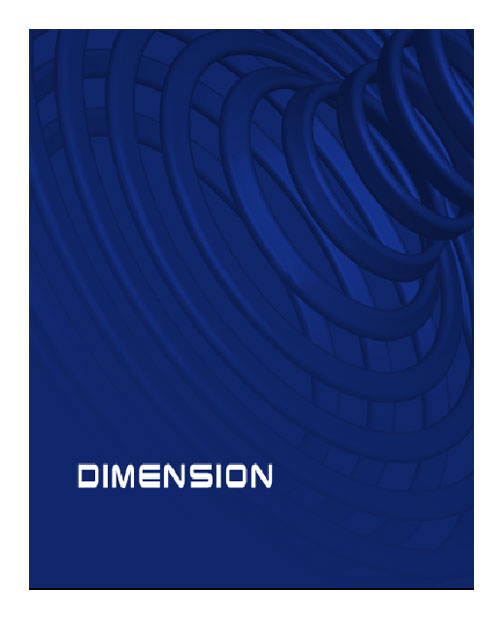
Corey learned this from a fellow designer. He shows us how to use Illustrator to create a stroke and apply 3D effects to it and then bring it over to Photoshop to use as an interesting background graphic.

Here’s a look at the finished product from Corey’s Illustrator tutorial
Share & Enjoy


  1. Joro Illustratör (Reply) on Friday June 6, 2008

    Cool! never thought about using it that way.

  2. jacob (Reply) on Friday June 6, 2008

    that was a good tut. would like to see what other shapes can be made also.

    thanks

  3. said (Reply) on Friday June 6, 2008

    Thank you Corey am learning from you guys all the time .

    Many thanks
    Regard

  4. sean steezy (Reply) on Friday June 6, 2008

    Corey was one of the most impressive at Photoshop World in Orlando. I realized very quickly that I could learn A LOT from a guru like him. Made me take a second look at the possibilities inside illustrator!

  5. Randy Calderon (Reply) on Friday June 6, 2008

    This is amazingly useful since most (well me at least) can’t afford 3D software. Great tutorial. Thanks.

  6. Roland (Reply) on Friday June 6, 2008

    Just wondering why Corey insists the revolve must always be around the left side of the object.
    There’s a pull-down menu in the Revolve dialog that lets you choose between left and right… Self-proclaimed guru’s aren’t always right ;)

  7. holly (Reply) on Friday June 6, 2008

    if you bring that into flash form illy will it retate completey like a real 3d object. I mean can you use this instead of something created in Swift 3D

  8. Marco (Reply) on Friday June 6, 2008

    Basic, but clear explanation, easy to follow, nice and nite. I like it very much.
    I hope Layers Magazine dedicates more space for this helpfull Illustrator tips and tutorials (sadly they do not show up us often they should).
    Thank you Corey and please do not forget us (the illustrator, indesign, after efects and other non-photoshop fans).

  9. fredie Saint-Cyr (Reply) on Friday June 6, 2008

    Thanks
    That was really good
    Well narrated

  10. rameshvee (Reply) on Friday June 6, 2008

    wow its cool

  11. roberthsu (Reply) on Friday June 6, 2008

    thanks!

  12. dustin (Reply) on Friday June 6, 2008

    its awesome, but I’m an idiot. I can’t get the gradient to appear in my layer mask…

  13. davy (Reply) on Friday June 6, 2008

    Let’s dust off the cobwebs from this thread…You can always use text with Revolve to create some pretty cool shapes too. I never thought of using a dashed line though, very cool results. As for comparing with a 3D software program, for basic shapes this is far easier and faster than using 3D software, but of course it all depends on your output and design.

  14. Steve Lopez (Reply) on Friday June 6, 2008

    Very nice use of Illustrator and Photoshop

  15. slatiwonk (Reply) on Friday June 6, 2008

    God Bless You! You opened my eyes to so many things new.

    Thank you.

  16. pohrib constantin (Reply) on Friday June 6, 2008

    you are like a magician.bravo!

  17. Anton (Reply) on Friday June 6, 2008

    Bad thing about 3D effects is that 3D objects has slow redraw rate (when you use zoom tool, for example)

  18. David (Reply) on Friday June 6, 2008

    for some reason my layer mask will not allow me to add the gradient, can someone help me? What am i doing wrong?

  19. katia (Reply) on Friday June 6, 2008

    nice i like….

  20. [...] Creating 3D Shapes in Illustrator Utilize the Revolve tool in Illustrator to create a great-looking 3-dimensional shape. [...]

  21. [...] Creating 3D Shapes in Illustrator Utilize the Revolve tool in Illustrator to create a great-looking 3-dimensional shape. [...]

  22. [...] iPod Nano from scratch using the 3D Effect tool (among other tools and techniques) in Illustrator. Creating 3D Shapes in Illustrator Utilize the Revolve tool in Illustrator to create a great-looking 3-dimensional shape. Draw Fluffy [...]

  23. john (Reply) on Friday June 6, 2008

    m8, u r the 1!

  24. Mollie Doll (Reply) on Friday June 6, 2008

    I’m new to Illustrator and failing miserably!

    Is there some simple reason I can’t seem to copy and paste from Illustrator into PhotoShop? Several tutorials ask for that … but everytime when I cut from Illustrator and then go into PS, all fo the Edit options are grayed out. Someone help please!

  25. [...] Creating 3D Shapes in Illustrator [...]

  26. Mar- (Reply) on Friday June 6, 2008

    this s really great n help me in creating a 3D fishing handles! I never really check out that ‘revolve’ effect before, just ‘extrude & bevel’, which ‘revolve’ is way cooler! and check out the use of dotted lines! Smarty!

    However, for the ‘overlaying’ part, it can be done in illustrator too.ain’t it? Since it’s just a background and ‘overlay’ effect, and nothing else. The same way in photoshop, in illustrator it’s Window – Transparency tab – overlay.

    great work though!

  27. [...] Creating 3D Shapes in Illustrator Utilize the Revolve tool in Illustrator to create a great-looking 3-dimensional shape. [...]

  28. Kat (Reply) on Friday June 6, 2008

    I would like to use this effect in a logo (I am Very New To Illustrator , but very intermediate at Photoshop) is there a way to edit / cut out parts of this effect w/out loosing the 3d effect?

  29. aesthetics.sanju (Reply) on Friday June 6, 2008

    its cooooooool corey…… hope more tuts thank u .

  30. [...] Heart Artwork and Icons - Adding Texture - Creative Background Effects - D Brochure - Creating D Shapes in Illustrator ????? [...]

  31. [...] Creating 3D Shapes in Illustrator (video) [...]


Planet Photoshop Photoshop World Kelby Training Lightroom Killer Tips NAPP Scott Kelby
