
Swingin' Retro Look in Adobe Illustrator
There definitely seems to be a resurgence of retro design techniques all over the place. It can be seen everywhere. Perhaps the appeal is the simplicity of the technique. Adobe Illustrator has just the tools to achieve this look quickly and easily. Here we’re going to create a retro look using custom brushes and symbols.
STEP 1 Begin with a Long, Thin Rectangle
Select the Rectangle tool (M) from the Toolbox. Click once on the artboard and in the Rectangle dialog, enter 5″ for Width and .25″ for Height. Then open the Color panel (Window>Color) and fill the shape with any color you like (we used R:251, G:176, B:59).

STEP 2 Duplicate and Vary the Size of the Object
Hold down the Option (PC: Alt) key then click on the object with the Selection tool (V) and drag down to create a duplicate of the object. Drag the duplicate down to where there’s a small space between the two shapes. Repeat this several times, varying the space in between. Then vary the height of each object by selecting the object with the Selection tool, grabbing the middle handle on either the top or bottom, and dragging up or down slightly.
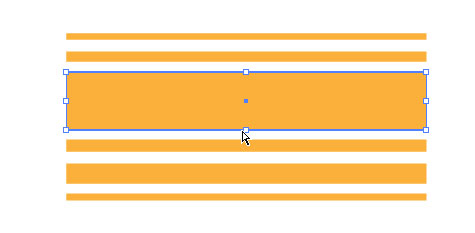
STEP 3 Fill the Spaces with White
We need to make sure that the areas between the shapes are filled with white. Right now nothing’s there, so it’s transparent. Select all the shapes with the Selection tool and make note of the overall measurement of the shapes by looking in the Info panel (Window>Info). Our overall object is 5×2.319″. Select the Rectangle tool and click once in the artboard. Enter the dimensions that you noted from the other shapes and click OK. Then in the Control panel, fill the box with white and set the Stroke to None.

STEP 4 Set the White Box in Place
Drag this new white box on top of the other boxes until they’re no longer visible. Then go under the Object menu and select Arrange>Send to Back. While there’s no obvious change, the transparent gaps now have a white fill.

STEP 5 Create a Brush
Press Command-A (PC: Ctrl-A) to select all the shapes or, if you have multiple objects in your artboard, click-and-drag over the entire shape area with the Selection tool. Open the Brushes panel (Window>Brushes) and drag the graphic into the panel. Choose New Art Brush from the New Brush dialog that appears. Make sure the Direction is set lengthwise along the shape, then check the Proportional option in the Size section and click OK. Now that you have this graphic as a brush, you can delete it from the artboard.

STEP 6 Create Background
Select the Rectangle tool and click on the artboard. In the Rectangle dialog, enter 15″ for Width and 8″ for Height. Fill the rectangle with R:247, G:147, B:30.

STEP 7 Add Gradient Fill
Open the Appearance panel and drag the Fill item onto the Duplicate Selected Item icon at the bottom of the panel. Open the Swatches panel and select the black-and-white radial gradient (Radial Gradient 1). Then go to the Transparency panel and change the blend mode to Overlay.

STEP 8 Create a New Shape
Now select the Ellipse tool (L) and click on the artboard. In the Ellipse dialog, enter 1.5″ inches for Width and Height. Then open the Brushes panel and click on the brush we created in Step 5. This will wrap the stripe effect around the circle you just created.

STEP 9 Make a Symbol
Now open the Symbols panel and drag this object into the panel. In the Symbol Options dialog, select Graphic and click OK. This will turn the original art into a symbol instance. Since we’re going to create a new graphic with the Symbol Sprayer tool, select this instance on the artboard and delete it.

STEP 10 Symbol Sprayer
Select the Symbol Sprayer tool (Shift-S) and make sure that the symbol you created is still selected. Then just randomly click in the center area of the background graphic. Note: The longer you hold down the mouse button the more Symbol instances are laid down. Now select the Symbol Sizer tool that’s grouped with the Symbol Sprayer tool in the Toolbox. Click on the symbols to increase the size of each instance. Hold down the Option (PC: Alt) key to decrease the size of the symbols. Finally, select the Symbol Screener tool to vary the opacity of the objects as you click on them.

STEP 11 Create Line Element
Select the Line Segment tool (\) from the Toolbox and click to the right of the background. In the Line Segment Tool Options dialog, enter 15″ for Length and set the Angle to 0°. Then set the Stroke to white in the Control panel. Go to the Effect menu and choose Distort & Transform>Transform. In the Move section of the Transform Effect dialog, enter –0.25″ for Vertical, set the number of Copies to 12, and click OK. Now choose the Selection tool and move the lines onto the background.

STEP 12 Distort the Lines
Next, go to the Object menu and choose Envelope Distort>Make with Mesh. Enter 1 for Rows and Columns, and click OK. Choose the Direct Selection tool (A), select the top-right corner handle, and drag it just beneath the bottom-right corner. As you can see, the lines distort the bend of the shape. Feel free to select other corner handles and drag them apart to change the distortion. Position the overall object so that lines run off either side. Top it off by adding a swinging silhouette party girl and it’s celebration time!

