
3D Motion and Position of Text Characters with After Effects
Typography is one of the qualities upon which we base most of our design work, and the type animation engine in After Effects offers a gamut of ways to express typographic flair. One of my favorites is the ability to control the 3D motion and position of text characters. When combined with simple camera moves, depth of field, and some real-world studio tricks we use every day, the results can be—literally—powerful. Let’s get started.
1 CREATE PROJECT; ADD BACKGROUND, TYPE
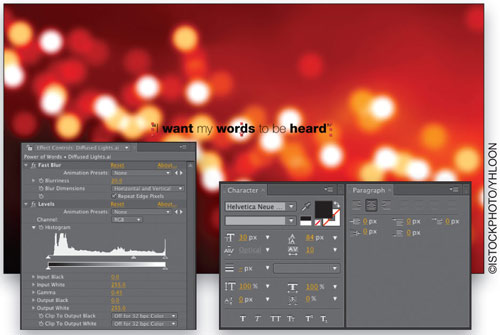
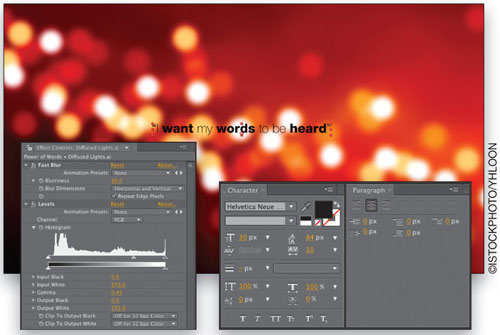
Create a New Composition, named “Power of Words,” at HDTV 1280×720 resolution with a 6-second duration, and then double-click the Project panel to import an image to use as a background. For this example, I purchased a vector illustration of blurry lights (#4292586 from www.istockphoto.com). Drag the image into the Timeline at 0 seconds and use any effects to adjust color or contrast, as well as an Effect>Blur & Sharpen>Fast Blur to soften focus. Go to Layer>New>Text, and enter the main text. We’ve styled ours using Helvetica Neue (85 Heavy and 35 Thin), 30-px size, Optical kerning, Tracking 10, black, and centered.
2 ADD AND EDIT 3D CAMERA
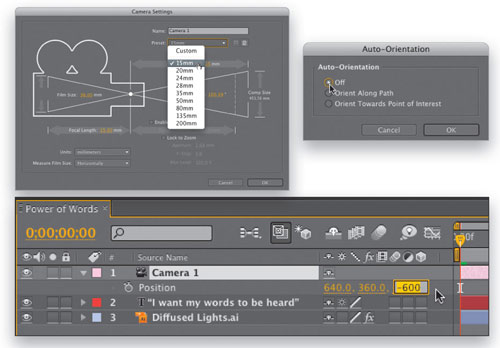
Now, go to Layer>New>Camera, choose 15mm from the Preset drop-down menu in the dialog, and click OK (if you get a 2D warning dialog, just ignore it for now). Press P on your keyboard to reveal the camera’s Position properties, and adjust the Z position value to –600 for the time being. Now go to Layer>Transform>Auto-Orient, choose Off, and click OK.
3 ADJUST 3D POSITIONS
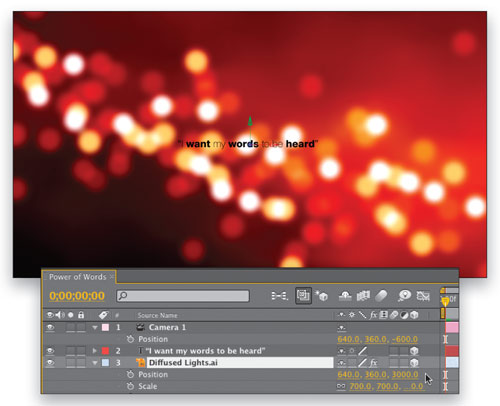
Click the 3D Layer switch next to both the text and background image layers in the Timeline, then select the background image layer, hit P, and set the Z position to 3000 in the far distance. Now, press Shift-S to show the Scale property also, and scale the background image until it touches the edges of the full composition.
4 DUPLICATE AND ADJUST TEXT
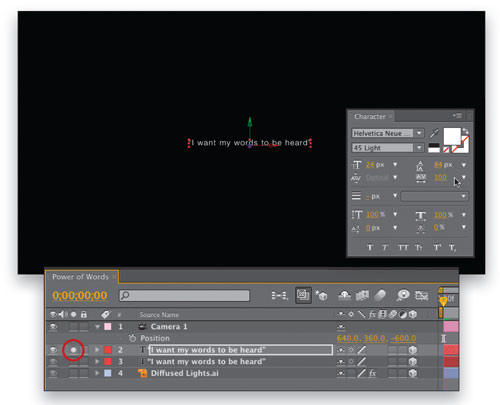
Twirl up the background image layer’s properties, select the text layer, and press Command-D (PC: Ctrl-D) to duplicate it. Click the Solo box on the left of the Timeline for that layer and in the Character panel, change its color to white. (Note: Go to Composition>Background Color and change the color to black so you can see your white text.) Now, change the Font family to be the same throughout—in this case Helvetica Neue 45 Light, the Size to 24 px, and the Tracking to 100.
5 EDIT TEXT; RENAME LAYER
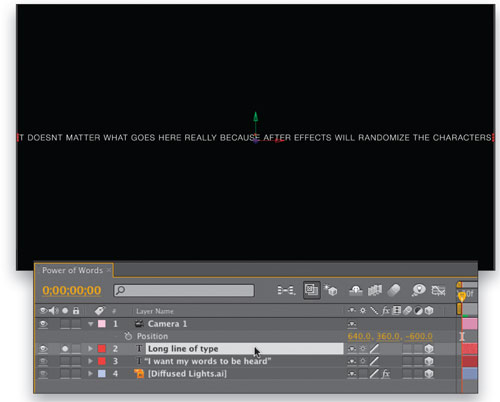
Now, double-click the T icon next to the layer’s name, then type in a series of words or sentences of your choice. The longer the line, the better the finished 3D strings of text will be, so feel free to type and copy-and-paste to extend the lines. You’ll notice that the layer’s name becomes rather awkward to work with, so when finished, click on the name of the layer, press Return (PC: Enter), and rename it to “Long line of type” or something short to that effect.
6 ADD FIRST TEXT ANIMATOR
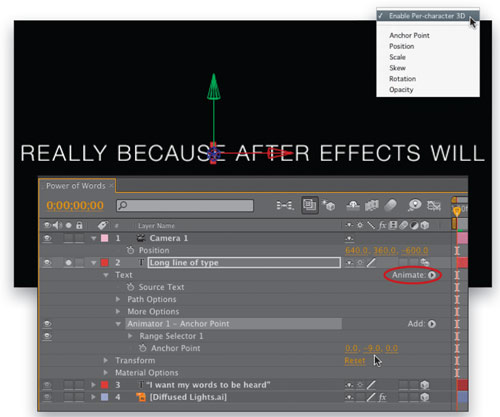
Now for the animators! Twirl down the Long line of type layer, twirl down Text, then click the arrow to the right of the word “Animate” and choose Anchor Point to add your first Animator. Click on the name of the Animator, press Return (PC: Enter), and rename it “Animator 1 – Anchor Point” for easy recognition. Go back to Animate and choose Enable Per-Character 3D from the menu, then adjust the Anchor Point Animator’s Y value to sit in the vertical middle of the type—in our example, around –9. This enables rotators we add later to spin from the center of the letters, not their baseline.
7 ADD SECOND TEXT ANIMATOR
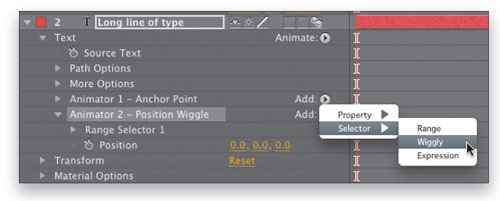
Twirl up and deselect Animator 1, then go back to the Animate menu and choose Position, which adds a second animator. Rename it “Animator 2 – Position Wiggle,” then next to the new name, click Add and choose Selector>Wiggly. This is where the fun and creativity really begin!
8 ADJUST POSITION AND WIGGLE VALUES
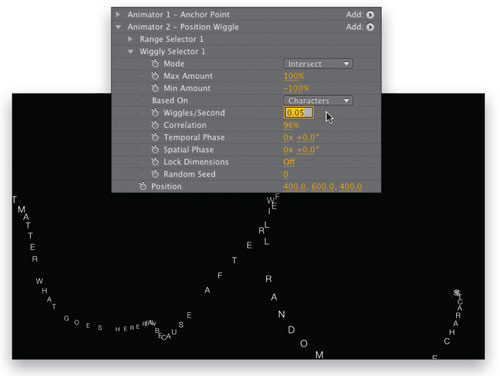
In the Position value within the animator, adjust the XYZ values to 400, 600, 400, respectively. As you can see, this blows the characters far apart easily. And if you scrub the Timeline, it looks crazy too—but this is easy to control. Twirl down Wiggly Selector 1, set the Wiggles/Second to 0.05 (it will show 0.1 when you press Return [PC: Enter]), and most importantly, set the Correlation to 96%. This causes the letters to remain more in line with each other, forming a gently rippling line of type.
9 ADD THIRD TEXT ANIMATOR
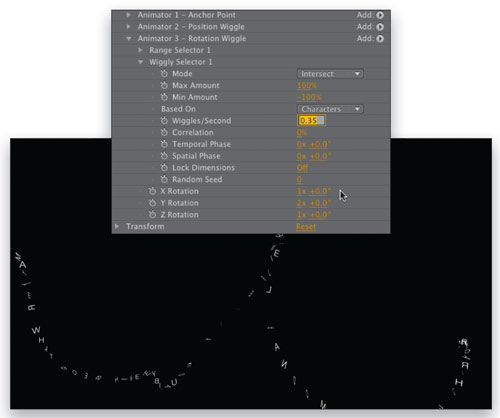
Deselect all, go back to the Animate menu, select Rotation, and next to the new animator, click Add and choose Selector>Wiggly. Rename this animator “Animator 3 – Rotation Wiggle,” then adjust the X, Y, and Z Rotation selectors to 1x, 2x, 1x, respectively. Now twirl down Wiggly Selector 1 and adjust the Wiggles/Second to 0.35 and the Correlation to 0%, and scrub the Timeline. This correlation value allows the random rotation to apply to the characters individually, which looks very cool.
10 ADD FINAL ANIMATOR
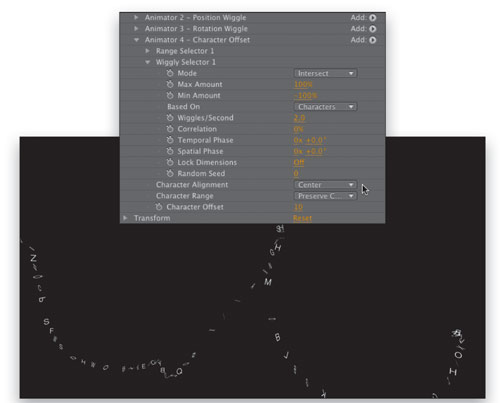
Deselect all, go back to the Animate menu, choose Character Offset, and then add a Wiggly Selector into that new animator. Rename this animator “Animator 4 – Character Offset,” then go to the newly added Character Offset value and set it to 10, and the Character Alignment to Center. Now adjust its Wiggles/Second to 2 and its Correlation to 0%, then view the results. Looking pretty cool!
11 ADD RANDOM LAYER ORIENTATION
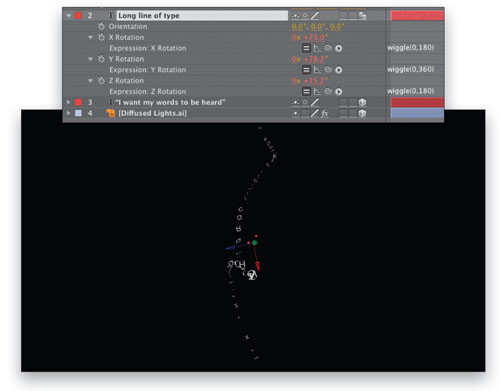
Now to adjust the entire layer’s rotation in anticipation of the next step, twirl up the entire text layer, then hit R to reveal its Rotation property. Hold down Option (PC: Alt), click on the Stopwatch for X Rotation to add an expression field, and type in wiggle(0,180), then hit Enter to confirm. This will randomly rotate the layer up to 180° on the x-axis, but with no motion. Now repeat this process to add expressions to both the y- and z-axes, using wiggle(0,360) and wiggle(0,180), respectively.
12 DUPLICATE, DUPLICATE, DUPLICATE
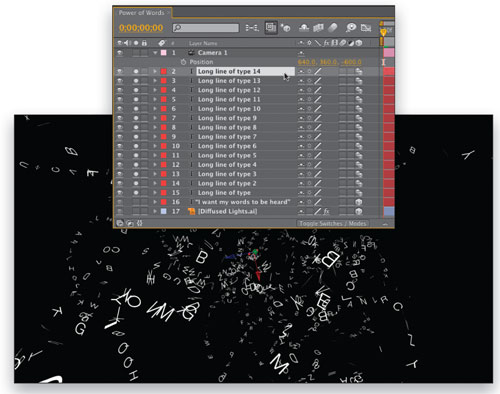
Everything we’ve created so far is referencing Wiggle values, which are created randomly in After Effects on a layer-by-layer basis, so if we duplicate this layer, we’ll get wildly different results. Twirl up the text layer, select it, then press Command-D (PC: Ctrl-D) to duplicate it. Not only do you see a new spread of text characters in completely different positions, but the layer name has added “2” to the end, which is why we renamed it. Now, duplicate as many times as you like to suit your design.
13 ADJUST AND ANIMATE CAMERA
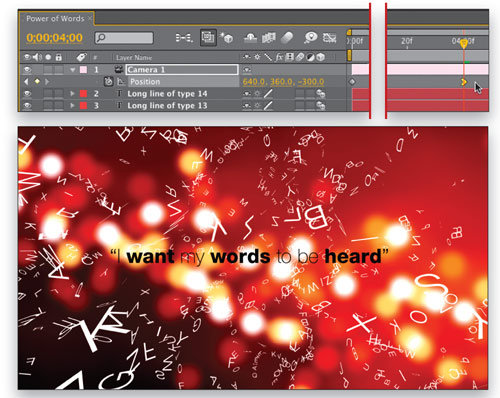
Turn off the Solo icon for all of the type layers, then select the Camera 1 layer and change its Z Position value to –900. At 00:00 seconds, click the Position Stopwatch to add a keyframe, then scrub to 04:00 seconds and change the Z position value to –300. Select that second keyframe and go to Animation>Keyframe Assistant>Easy Ease In (PC: Shift-F9), or adjust the velocity to suit your own design.
14 ADD DEPTH OF FIELD; MOTION BLUR
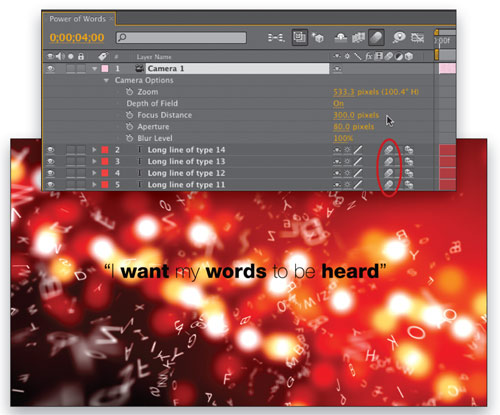
Finally, press AA to reveal the Camera Options, then turn Depth of Field to On. Change the Focus Distance to 300 and the Aperture to 80 pixels—this gives us perfect focus on the final wording line at 04:00. Feel free to turn on the Motion Blur switch for all of the text layers, then render your final movie.
A really powerful, and even slightly disturbing, motion piece created easily and quickly thanks to some careful planning, animators, wigglers, and expressions, and of course some good “Energi.” Enjoy!
ALL IMAGES BY STEVE HOLMES UNLESS OTHERWISE NOTED
