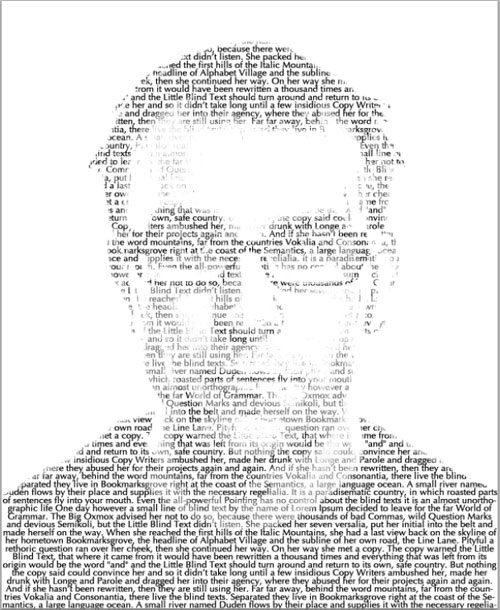
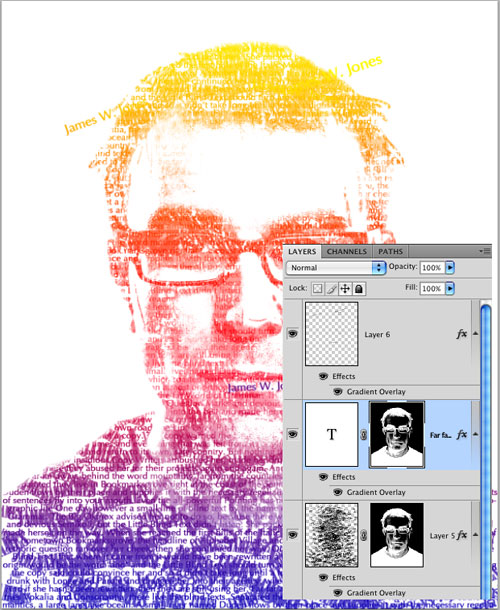
I love Photoshop techniques that offer all kinds of possibilities for experimentation—and the following tutorial is a perfect example of one of those techniques. In this issue, we’re going to take a portrait and replace the person’s image with text (think 2009 Grammy posters).
1 CHOOSE YOUR PHOTO
Pick a portrait that offers good contrast—a photo that’s very dramatic and dark probably won’t work as well. I’ve had the best success with straight-on head and shoulder shots, but again, feel free to experiment with all types of photos. For the best results, choose a photo that has a light background (or select the background around the person and make it lighter).
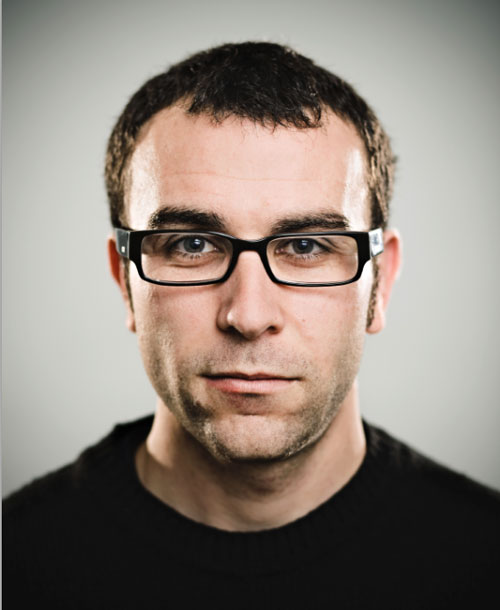
©ISTOCKPHOTO/JOAN VINCENT
2 CREATE VARIOUS TEXT BRUSHES
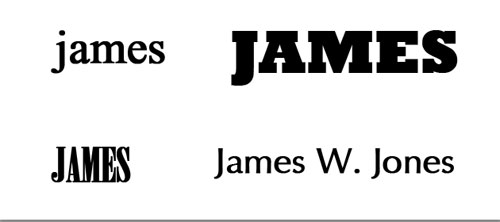
Create a new document (File>New) in a size that’s smaller than your photo: the specifics don’t really matter. Press D to set the Foreground color to black. Use the Type tool (T) to type several different words in various fonts and sizes (in this case we used a person’s name). One at a time, draw a selection around each word with the Rectangular Marquee tool (M), and from the Edit menu, choose Define Brush Preset. Name each brush in the Brush Name dialog and click OK.

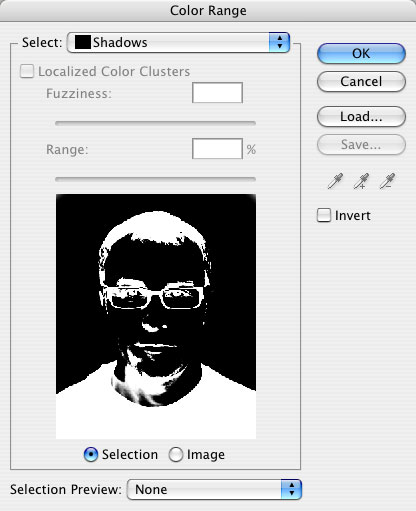
3 SELECT THE SHADOWS AND MAKE A LAYER
Switch back to the photograph. From the Select menu, choose Color Range. From the Select drop-down menu in the Color Range dialog, choose Shadows and click OK. (In our example, nothing in the background was selected. If parts of the background are selected in your photo, see the next step for removing those selected areas.)
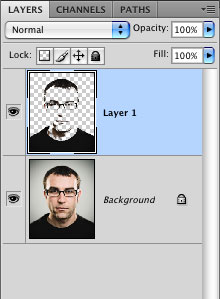
Then, press Command-J (PC: Ctrl-J) to copy the selected pixels onto a new layer. Press Command-J (PC: Ctrl-J) to copy the selected pixels onto a new layer. Click back on the Background layer in the Layers panel.
4 SELECT THE MIDTONES AND MAKE A LAYER
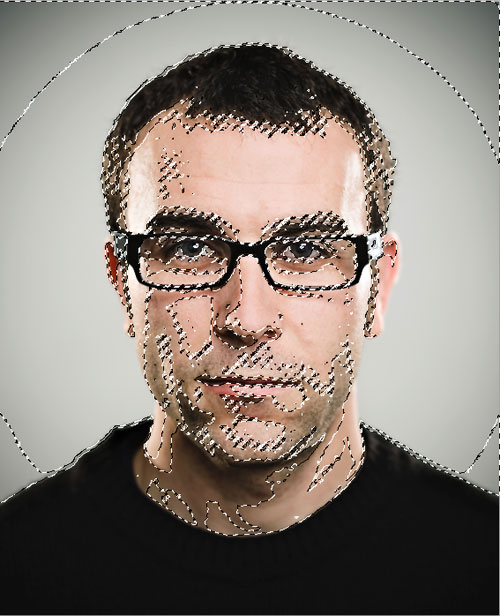
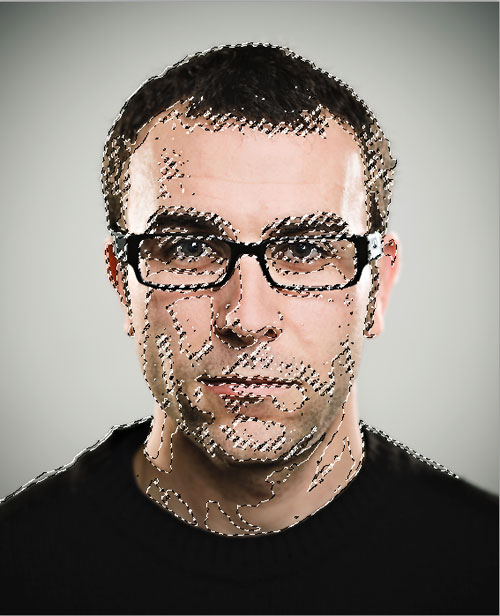
Go back to the Select menu and choose Color Range again. From the Select drop-down menu in the Color Range dialog, choose Midtones and click OK. If (as in this example) some of the background is selected, use the Lasso tool (L) with the Option key (PC: Alt key) held down to circle the areas you don’t want selected. Then, press Command-J (PC: Ctrl-J) to copy the selected pixels onto a new layer.
5 FILL THE LAYERS WITH BLACK AND GRAY
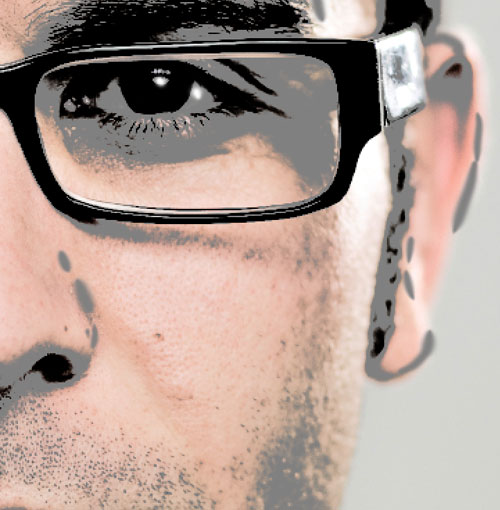
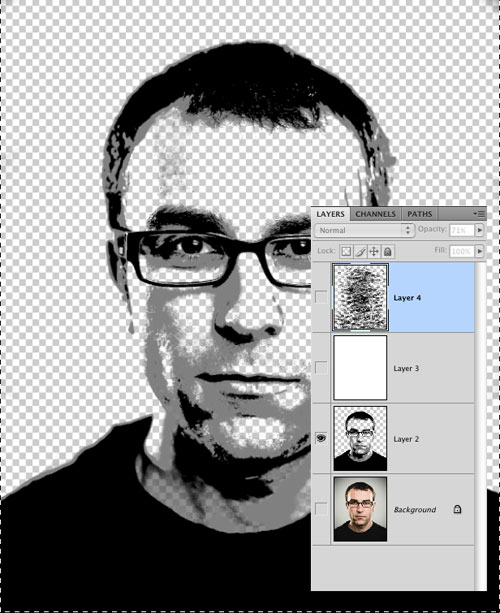
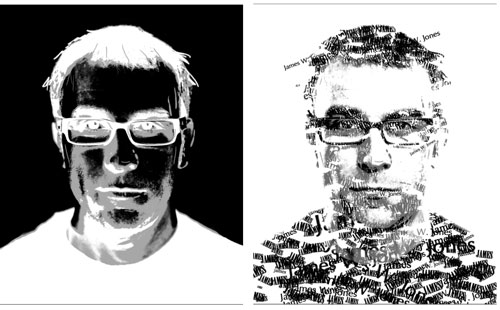
Click the Eye icon next to the Background layer in the Layers panel to hide that layer from view. Click on the midtones layer and from the Edit menu choose Fill. Use 50% Gray, check the Preserve Transparency box, and click OK. Then, activate the shadow layer and use the Fill command again, except this time use Black with Preserve Transparency checked. You should have a very basic portrait made from black and 50% gray.

6 FINE-TUNE THE RESULTS AND MERGE DOWN
If necessary, show the original Background (click where the Eye icon used to be) and use the Brush tool (B) to paint with black on the shadow layer, gray on the midtones layer, or use the Eraser tool (E) to completely remove areas. (Note: For gray, click on the Foreground color swatch, enter R:128, G:128, and B:128 in the Color Picker, and click OK.) In this example, we added a little more definition to the ears by painting with gray on the midtones layer. Once you’re satisfied, click on the top layer (the shadow layer) and press Command-E (PC: Ctrl-E) to merge it with the midtones layer.
7 ADJUST BRUSH SETTINGS AND PAINT SOME TEXT
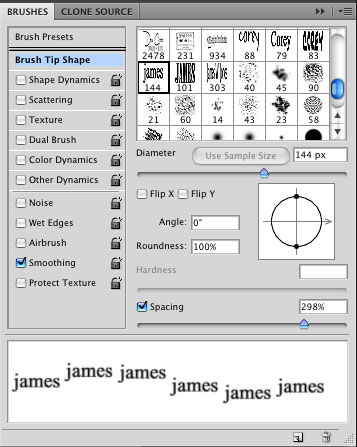
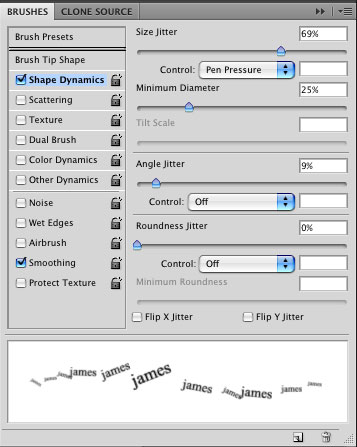
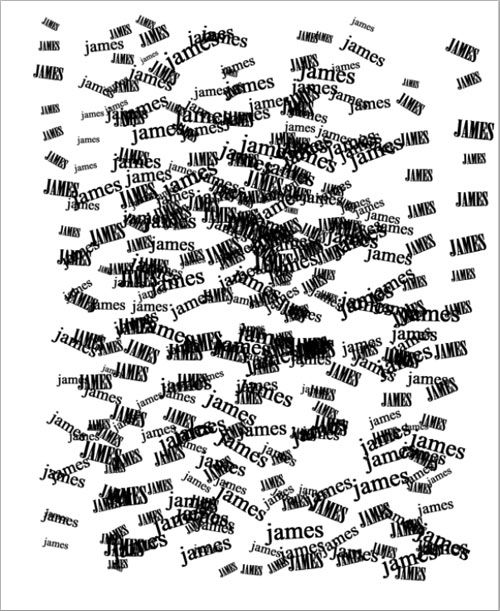
Click the Create a New Layer icon at the bottom of the Layers panel. Press D to set your default colors. Press Command-Delete (PC: Ctrl-Backspace) to fill the new layer with white. Choose one of your custom brushes from the Brush Picker in the Options Bar, and in the Brushes panel (Window>Brushes), click on the words “Brush Tip Shape.” Adjust the Spacing so there’s space between each word. Under Shape Dynamics, vary the size and rotation of the brush. As you paint on the white layer, experiment with the Shape Dynamics. Repeat with your other custom brushes. For now, just get some “text paint” on the layer—we’ll continue painting in a moment.
8 COPY THE PORTRAIT
Create a new layer and drag it above the black-and-gray portrait layer. Press Command-Delete (PC: Ctrl-Backspace) to fill it with white. This will provide a white background behind our image. Hide all the layers except the black-and-gray portrait layer, and then click on that layer to make it active. Press Command-A (PC: Ctrl-A) to Select All and then Command-C (PC: Ctrl-C) to Copy.
9 PASTE INTO A LAYER MASK
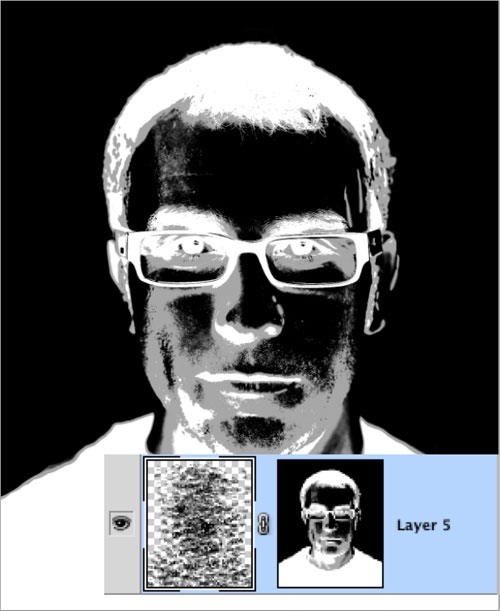
Show all layers and activate the layer with the painted words. Click on the Add Layer Mask icon at the bottom of the Layers panel to add a layer mask. Hold down Option (PC: Alt) and click on the layer mask thumbnail (this will hide the painted text and show just the mask). Press Command-V (PC: Ctrl-V) to paste the copied pixels onto the mask. Press Command-D (PC: Ctrl-D) to Deselect. Press Command-I (PC: Ctrl-I) to Invert the mask (your mask should look like a negative of the black-and-gray pixel image that you pasted).
10 CONTINUE PAINTING, VARYING BRUSHES
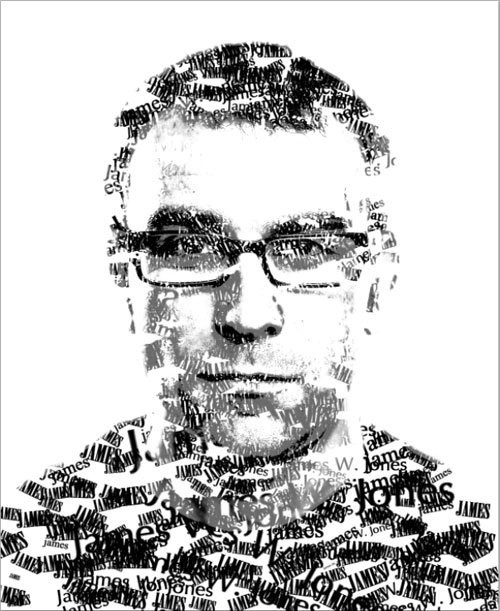
Activate the painted text layer (not the mask) by clicking on the layer thumbnail, and continue painting using the different custom brushes you created. You can also continue to experiment with the brush settings for Size, Spacing, and Shape Dynamics. (Although you don’t need a pressure sensitive pen for this technique, it sure helps!)
11 ADD A LAYER WITH RANDOM TEXT
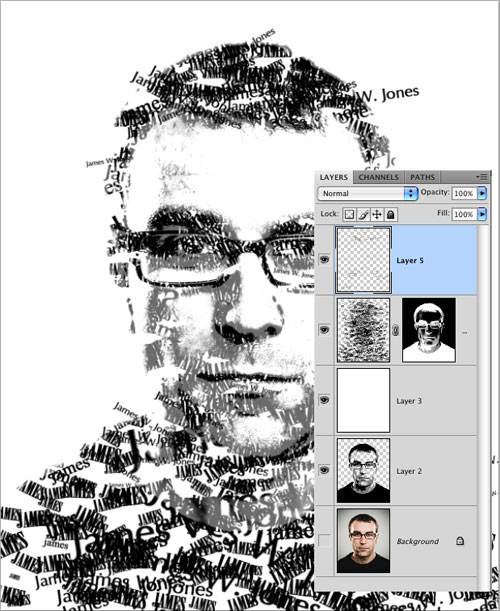
The painted text will only appear inside the white and gray areas of the mask. To add a bit more randomness to the portrait, add a new layer above the painted text layer. Then use the same text brushes to add a few words here and there outside the boundaries of the mask.
12 PAINT ON THE MASK IF NECESSARY
If there are areas where you’d like text to appear in the portrait—or there’s text showing where you don’t want it to show—click on the layer mask and paint with a round, soft-edged brush: use black to hide the text, white to show the text, and shades of gray to make the text somewhat visible.
13 VARIATION: ADD A GRAIDENT OVERLAY
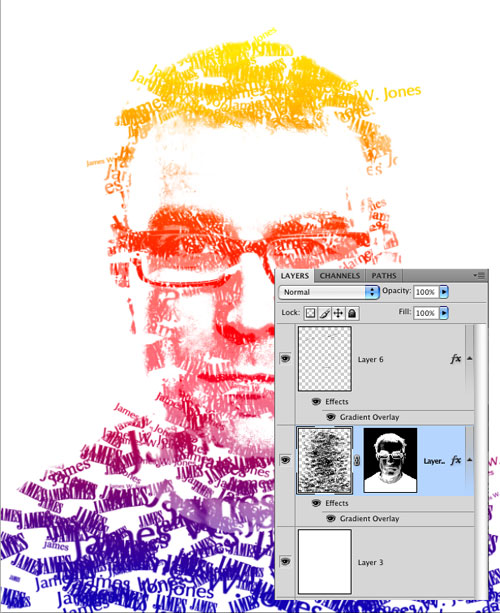
Here’s a simple variation: Add a Gradient Overlay layer style to the painted words layer. Just click on the Add a Layer Style icon (fx) at the bottom of the Layers panel and select Gradient Overlay. In this case we clicked on the Gradient thumbnail, and selected the Blue, Red, Yellow gradient in the Gradient Editor. Click OK to close the Gradient Editor, then select Screen for the Blend Mode and click OK. Hold down Option (PC: Alt) and drag the word “Effects” in the Layers panel on top of the “extra words” layer to copy the same layer style to that layer.
14 VARIATION: USE TEXT BLOCKS WITH THE MASK
Use the Type tool to click-and-drag a text box around the entire image. Get a large amount of random text (we used www.blindtextgenerator.com) and paste the text into the text block. Hold down Option (PC: Alt) and drag the layer mask from the painted text layer onto this new type layer to copy the mask. Then, either hide the painted text layer, or use both the painted layer and the new type layer—the possibilities are endless!